Create with Mark / The skills guide
How I build better games with Claude skills
What skills are, why I use them, and how to download, install and use one yourself. Follow the steps, copy the prompts, and make your first build.
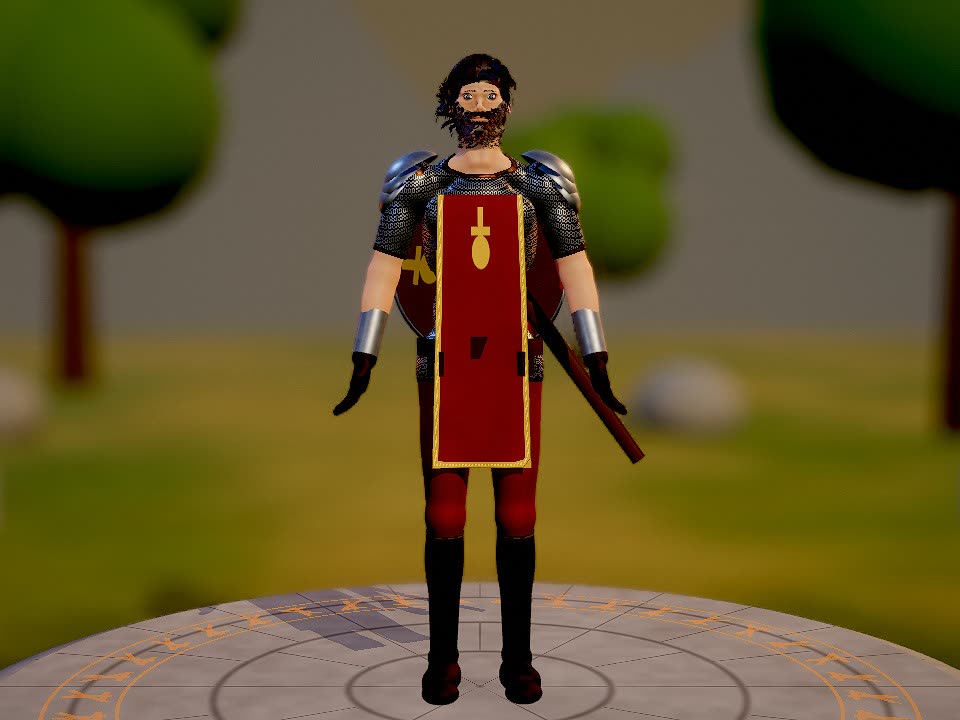
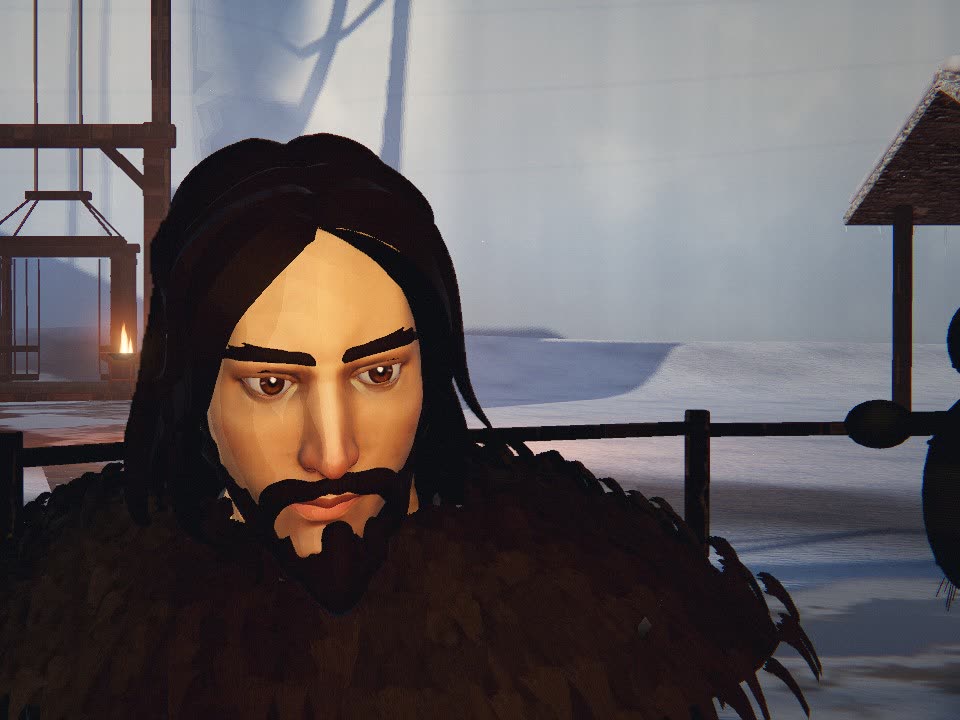
Game Character KitActual captures from different builds
Watch the walkthrough
How To Use Claude Skills to Build Better AI Games Faster
I walk through how I use skills to build games in this video. Watch it first, then follow the steps on this page to install and use one.
Watch on YouTube
Choose. Install.
Build something.
Start at the beginning, or click the step you need. The game-building walkthrough uses Claude Code on your computer.
Set the quality bar.
Keep it.
A skill is a reusable set of instructions for Claude. It can include examples, tools and files. Think of it as a saved preset for how you want a certain kind of job done.
I use skills to set the quality bar for a whole game, or one part of it, like characters or combat. I spend less time fighting the model through a million prompts because it already has a clear starting point.
The beautiful part: you can reskin it. Keep the useful foundation, then change the setting, characters and style. One skill can become very different games.
Before the character skill. After it.
Look at the faces, hair, clothing and silhouettes. These are actual captures from different games: Everrealm and Sundown before I used the skill, Night’s Watch with it.
Before / Without the skill
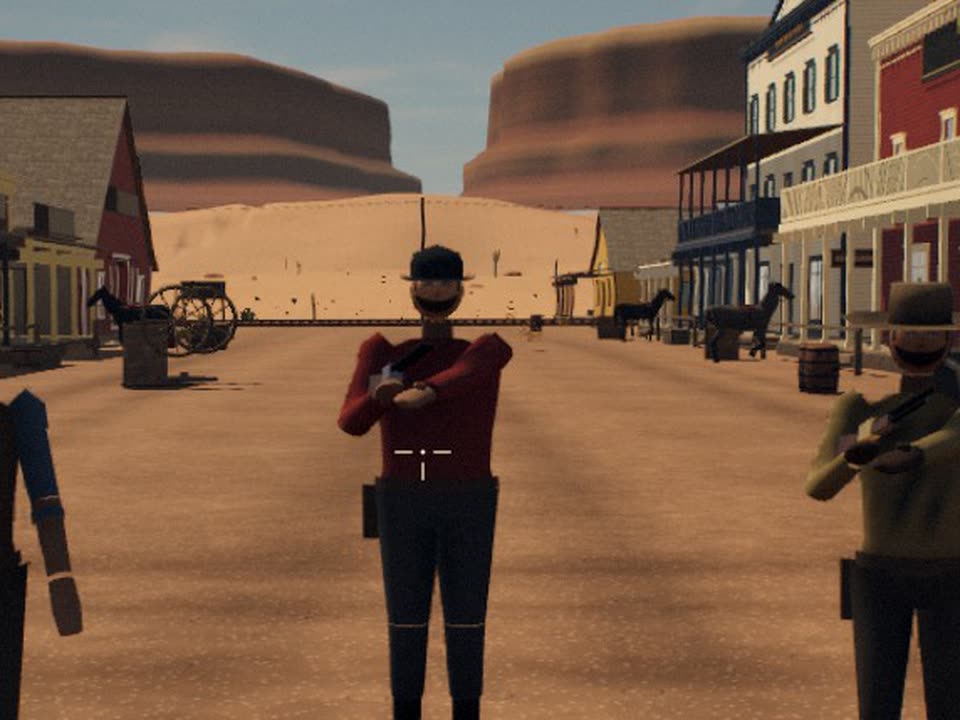
Built directly from prompts, before I had the character skill.
After / With the skill
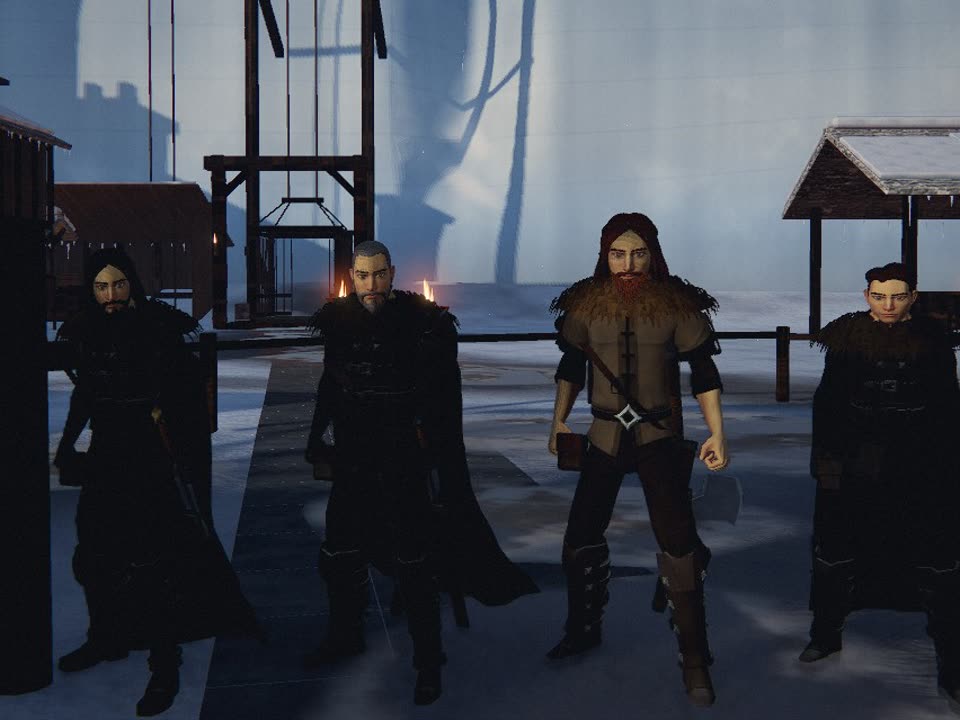
The character skill gives Claude detailed bodies, faces, hair and outfits to build on.
Same foundation.
Different worlds.
For a whole voxel world, start with Voxel World. For detailed characters, use Game Character Kit. For a shooter or dungeon crawler, choose the kit that fits the camera and combat.
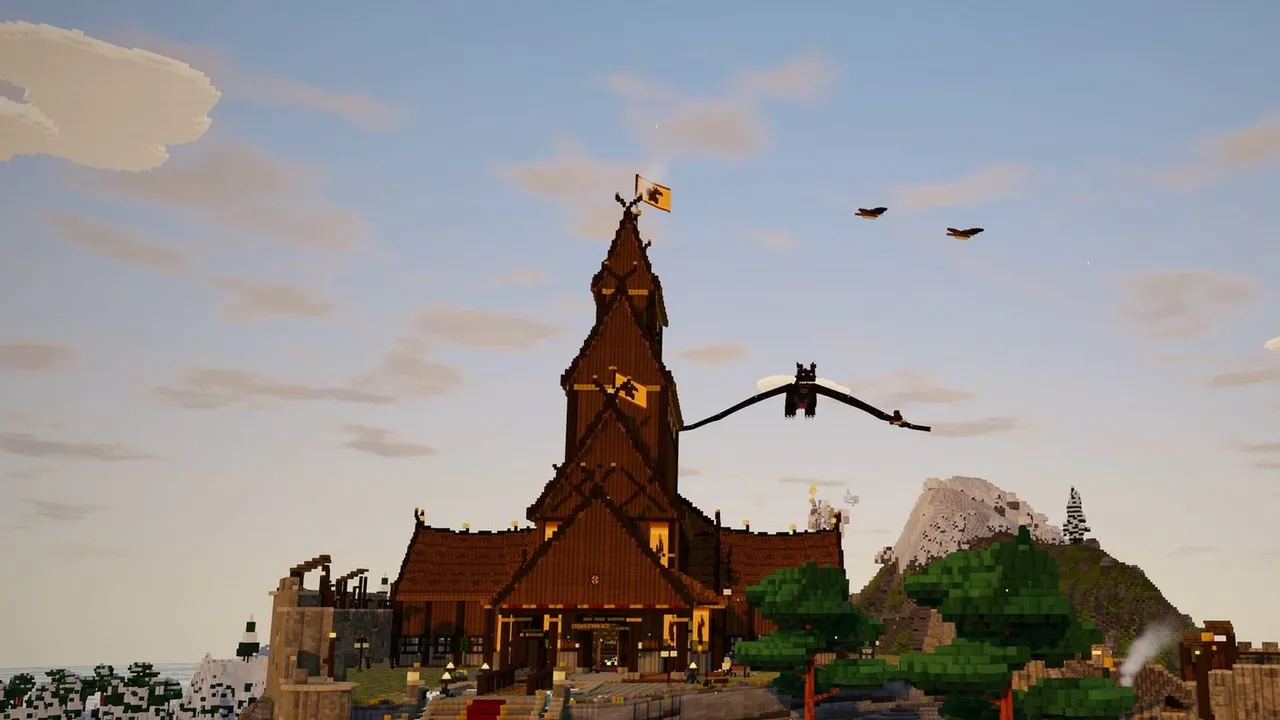
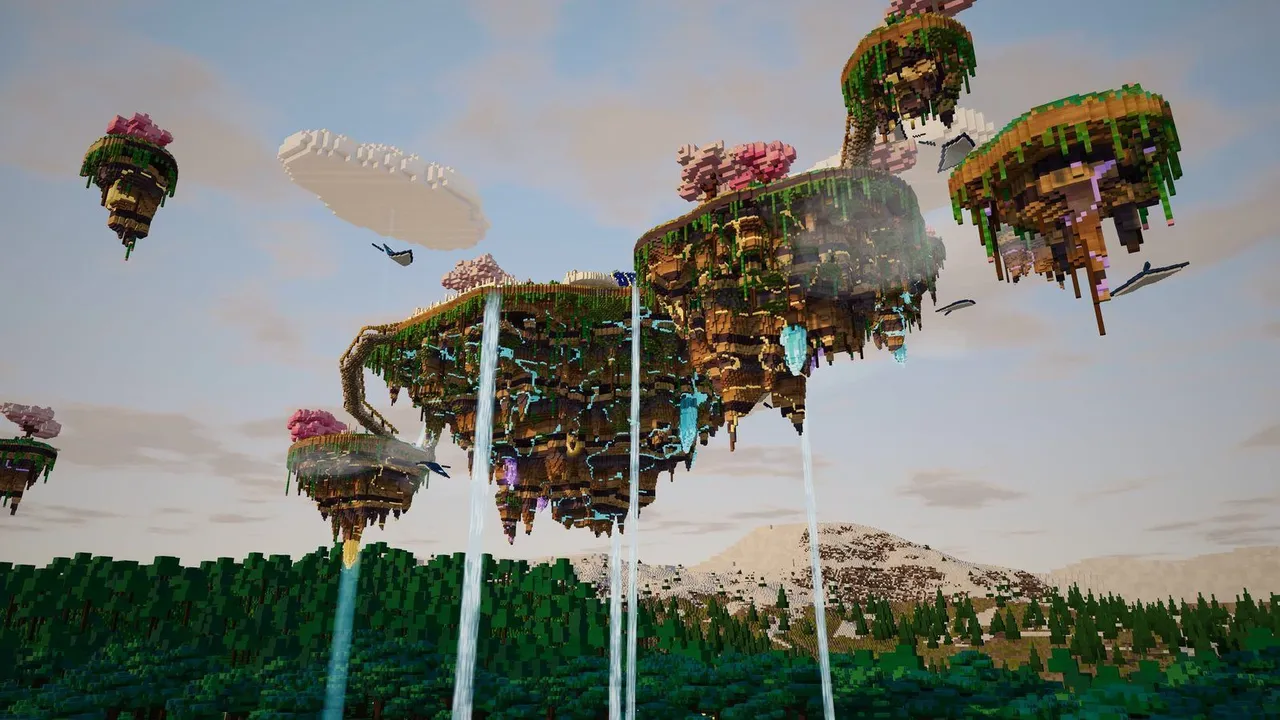
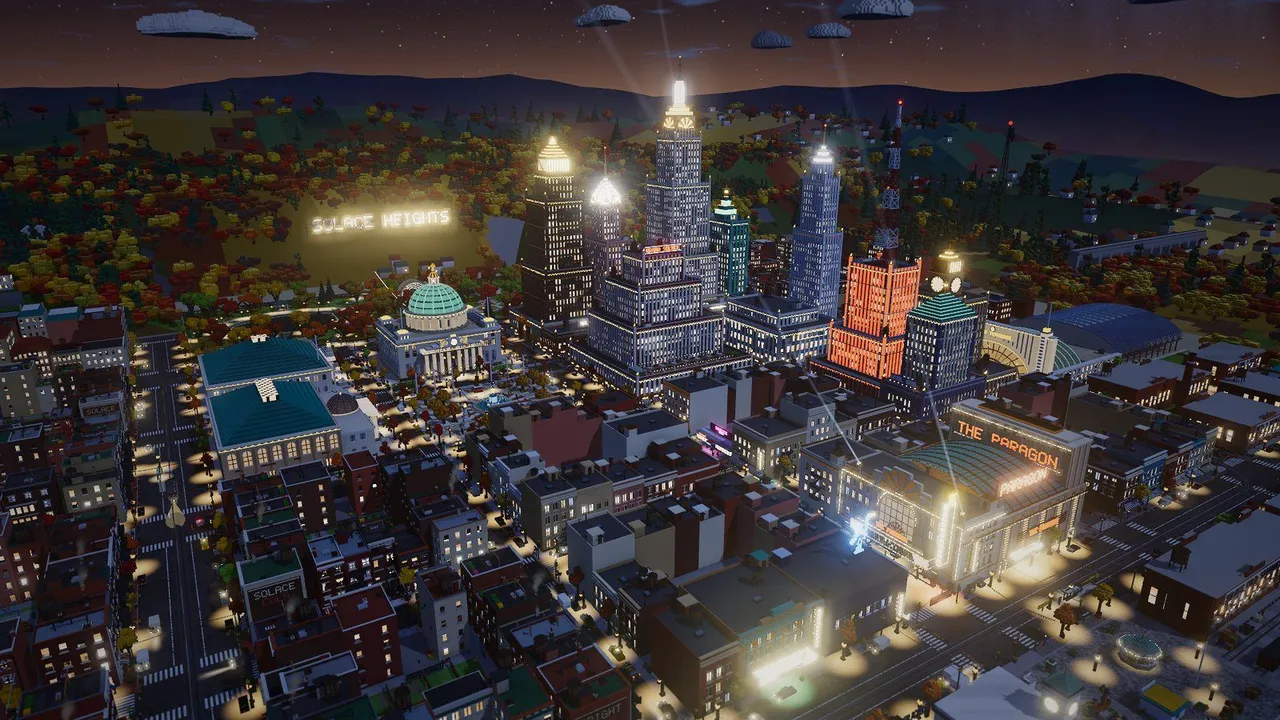
My Voxel World skill in four settings
All four builds use the same skill. The world I ask Claude to make is up to me.

Doom, FPS and Dark Crawler
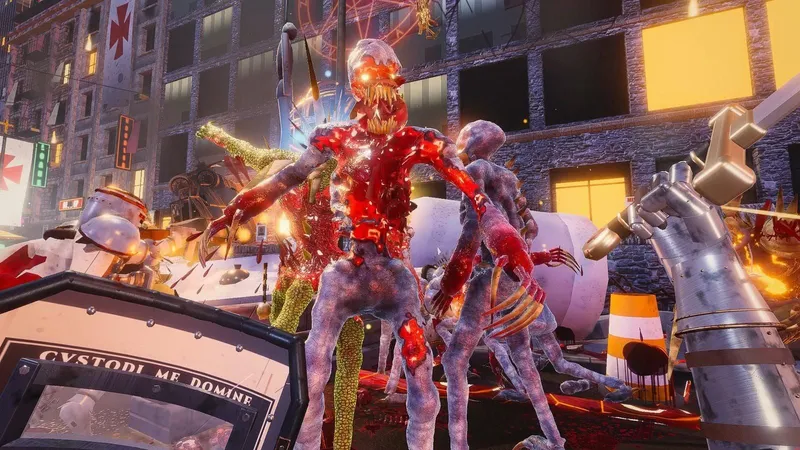
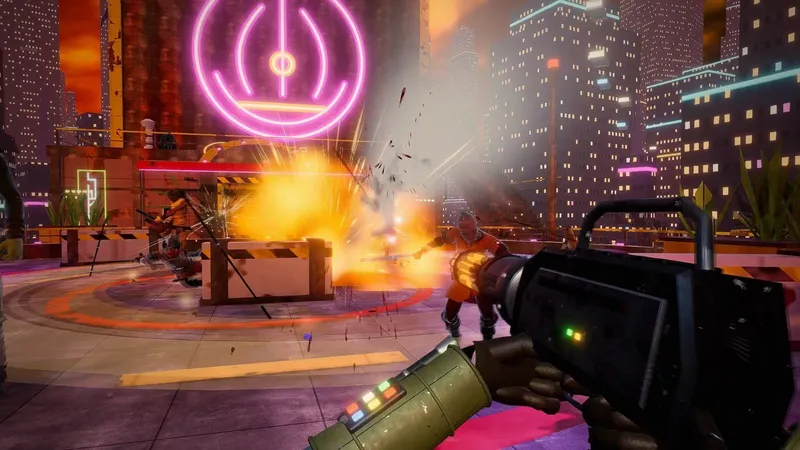
Doom Skill
High-octane first-person arena shooters.
Built with this skill: The Final Crusade · Boba Fett: Bounty Hunter
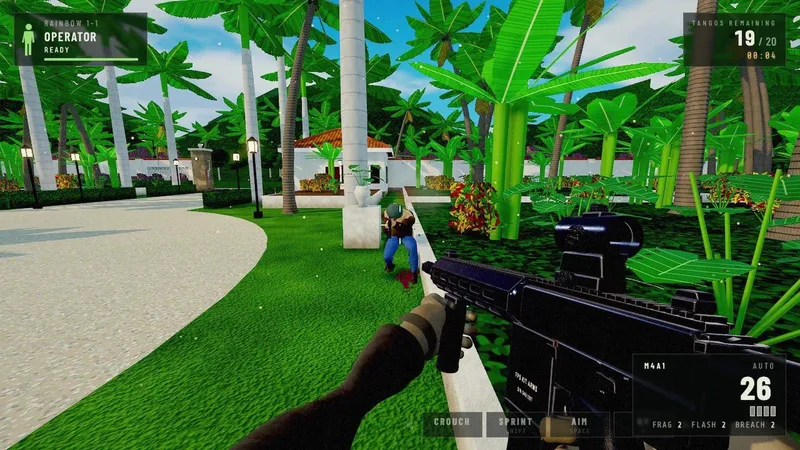
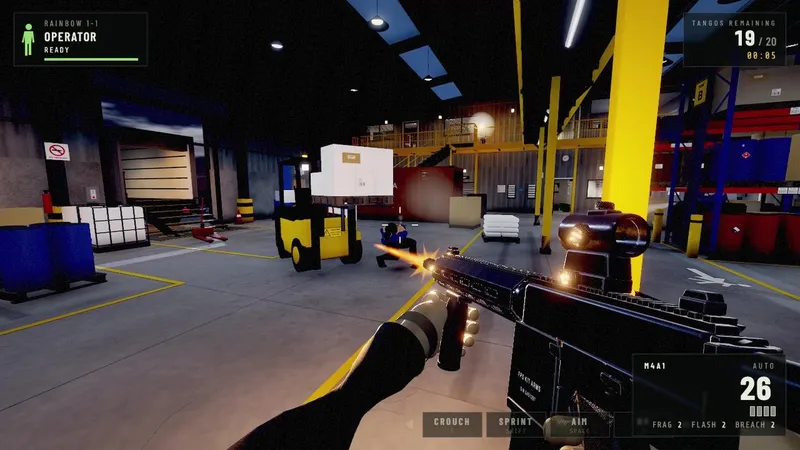
FPS Kit
Real guns and hands for any first-person shooter.
Built with this skill: Terrorist Hunt · Blood Gulch
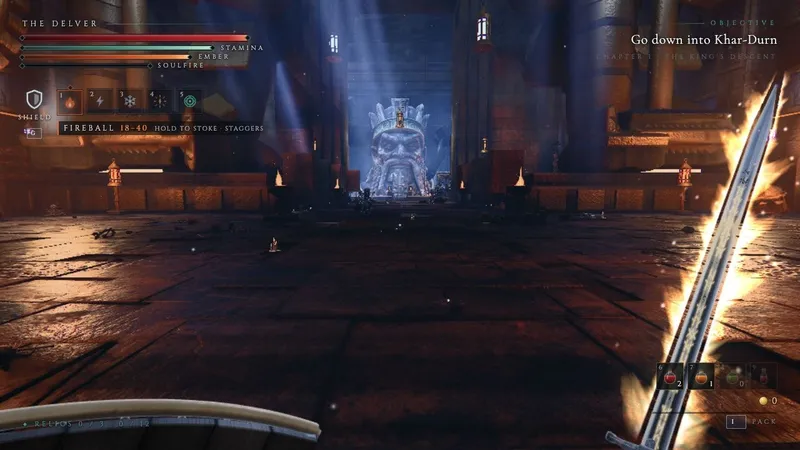
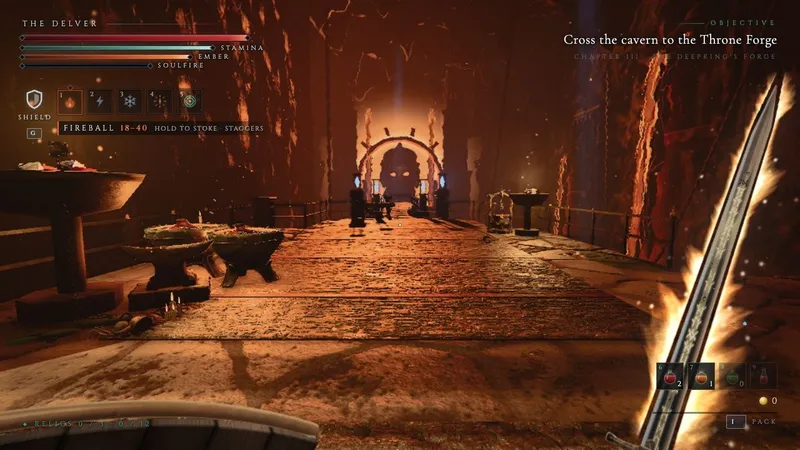
Dark Crawler Kit
First-person sword-and-shield games, from dungeon crawlers to full RPGs.
Built with this skill: Deepfall · Grimhold · Night’s Watch
Pick one skill for your first build. You can combine skills later, once you know what each one brings.
Get the files.
Keep them together.
Download a skill from my Creator Bundle or from GitHub. Choose your source below and follow those steps.
- 01
Open your library
Go to the member library and sign in with the email you used to buy.
- 02
Choose a skill
Open Skills, choose the skill you want, and download its file. I’ll use Voxel World for this walkthrough.
- 03
Find the download
Keep the ZIP or unzip it into a folder. Keep the instructions and supporting files together.
- 01
Read the README
Open the skill’s repository on GitHub and check its download instructions. Use a ready-made skill ZIP if one is provided.
- 02
Download the files
Otherwise, choose Code → Download ZIP from the repository page. Unzip the download on your computer.
- 03
Find the skill folder
Look for
SKILL.md. Keep that folder and its supporting files. A repository can contain more than one skill.
Don’t grab just the instruction file. A skill may depend on included scripts, examples and assets. Bring the whole skill folder into the next step.
Let Claude
handle the setup.
My game-building skills use Claude Code, which works with your project files and tools on your computer.
First time using Claude Code? Follow Anthropic’s setup guide to install it and sign in. Create a folder for your game and open Claude Code there. Claude access is separate from the bundle.
- 01
Give it the download
Provide the ZIP or folder, or paste its full location. Include that location with the install prompt below.
- 02
Ask it to install
Paste the prompt. Claude should follow the skill’s setup instructions and explain any tools it still needs.
- 03
Check it is ready
Have Claude confirm the installed name and whether setup is complete. Use that name in your build prompt.
Install the skill in the ZIP or folder I provided for my personal use in Claude Code. Keep its SKILL.md and all supporting files together. Follow its setup instructions, then tell me the installed skill name, where you put it, and whether anything else is needed before I can use it.
Include your downloaded file’s location with this prompt.
Check that the skill we just installed is ready to use. Tell me its name, what it helps me build, and whether any setup is still needed.
Using regular Claude chat?
For a skill compatible with chat, enable file creation in Settings → Capabilities. Open Customize → Skills, choose + → Create skill → Upload a skill, upload its ZIP and toggle it on. My game kits need Claude Code and local tools; uploading them to chat does not provide those tools. Official chat instructions ↗
Name the skill.
Describe the game.
The skill sets the foundation. Your prompt supplies the setting, the style and what the player actually does. Start with one small playable idea.
What to build with
Use the skill name Claude confirmed when it installed it.
Where it happens
A floating pirate city, a frozen fortress, a neon street.
What I can do
Explore, talk to a character, find treasure, fight an enemy.
Use the Voxel World skill to build a small playable game in a floating pirate city. Let me explore on foot, talk to a character, and complete a treasure hunt. Follow the skill’s quality checks, test the game, and tell me exactly how to open and play it.
Example prompt. Change the setting and actions to make it yours.
Send it in your game project, let Claude build and test, then ask for the exact file or local preview link and the controls. Open it and try the main action yourself.
Before moving on: You can launch the game, move around and try its main action. If it doesn’t open, send Claude the error and ask it to check the launch instructions.
Keep what works.
Change the world.
A skill saves repeated explanation. You still direct the result. Play the build, pick one thing that needs work and describe it clearly.
Keep using the same skill. The character gets stuck on the stairs near the starting point. Fix that collision and test walking up and down those stairs. Keep the rest of the game working.
Then try a completely different setting
The voxel examples above all use the same skill. Keep the useful systems, then ask for new architecture, characters, lighting and scenery. Save a separate version so you can keep the original.
Use the same Voxel World skill to make a new version set in a snowy mountain village. Keep the exploration and treasure-hunt loop, but change the architecture, characters, lighting and scenery. Save it separately so I can keep the original.
That’s the loop: use the skill, build, play, improve. For my full process on prompts and revisions, use the game creation guide ↗.
A few quick
answers.
Claude cannot find the skill. What do I do?
Give it the full location of the downloaded ZIP or folder and ask it to confirm it can read the files. If it is already installed, ask Claude to check the installation and use the skill by name.
Do I need to install it for every game?
A personal Claude Code skill is available across projects. Start a new folder for a new game and ask Claude to use the installed skill. A project-only installation stays with that project.
What if it asks for tools or the game will not open?
Ask Claude to explain the required setup and complete it. If the game has an error, send the message or a screenshot and ask Claude to reproduce and fix it. Some builds need a local server; ask for the exact launch instructions.
Illustrated pack mockups. Everything inside is digital.